In the age of AI agents, the name of a UI element is the spec
You used to need to draw an interface or code it. Now you describe it, and an AI agent builds it. That makes one old skill matter more than before: knowing what each part of an interface is called.
Why names matter more now
Your words are the spec. With an AI coding tool such as Claude Code or Cursor, what you type is what gets built. The agent cannot see the picture in your head; it has the words.
Look-alikes are different components. A toast and a snackbar, a modal and a popover, tabs and a tab bar look close and behave differently. A vague description makes the agent pick one for you. UI elements people mix up tells 64 such pairs apart.
The name is the same word the code uses. Design systems and frameworks name their components: a bottom sheet, a segmented control and a tab bar each have a counterpart in SwiftUI, Jetpack Compose, Flutter and HTML. Each catalog entry lists them.
Reviewing needs names too. When the agent gets it almost right, “make the segmented control a tab bar” fixes it in one sentence. Without the words, you are back to describing shapes.
Say it by name
What people type when they do not know the word, and the word that gets the right component.
| What people say | What it is called |
|---|---|
| “the menu that slides up from the bottom” | Bottom sheet |
| “a pop-up message that disappears on its own” | Toast |
| “the toggle between two or three options” | Segmented control |
| “grey loading boxes” | Skeleton screen |
| “the three dots menu” | Overflow menu |
| “the icons at the bottom of an app” | Tab bar |
The same request, twice
Without the name
Add a menu that slides up from the bottom when I tap the button.
With the name
Add a bottom sheet: tapping the trigger slides a panel up from the bottom edge. Dim and block the screen behind it while it is open, show a drag handle at the top, open it at half height and let it expand to full height when dragged up. Dismiss it by swiping down, tapping the dimmed area or pressing Escape, and return focus to the trigger when it closes.
The second prompt is the one on the Bottom sheet entry; every catalog entry has one, ready to copy.
Learn the names with CatchUI for iPhone
The quickest way to learn a name is to meet it on a screen you already use. CatchUI for iPhone — coming soon to the App Store — is built for that.
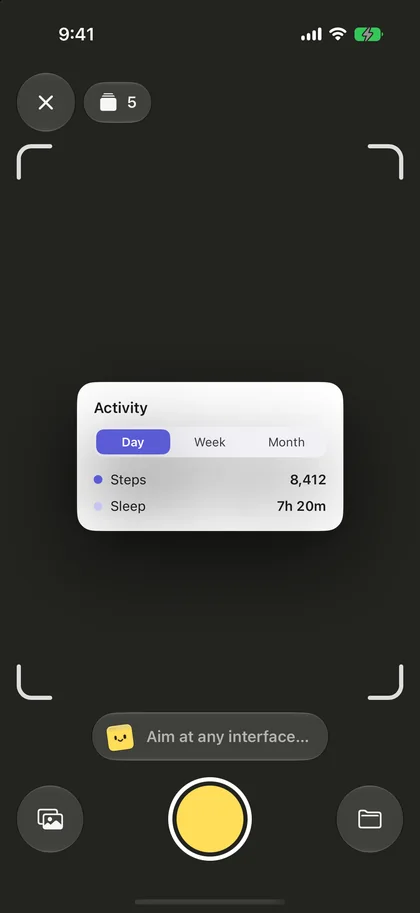
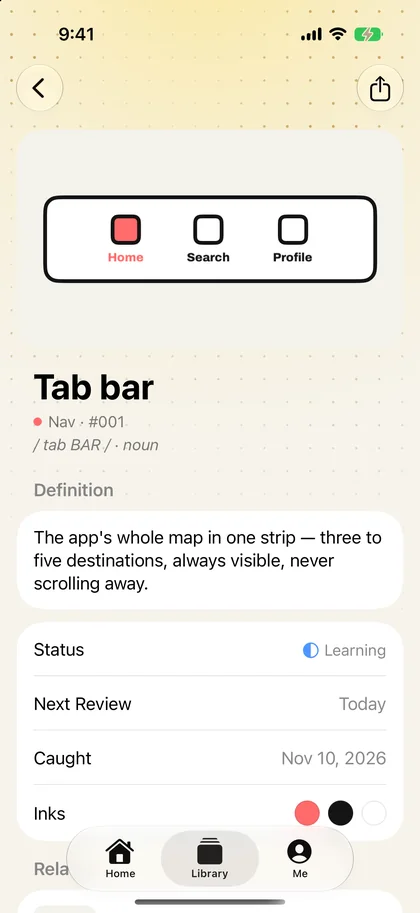
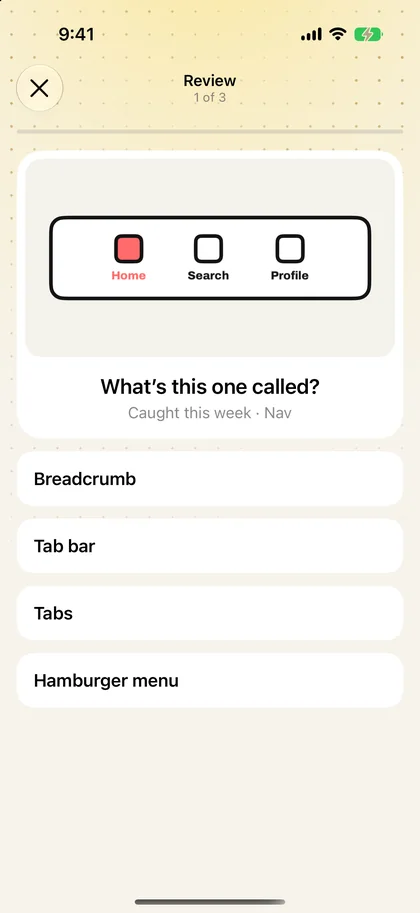
Catch what you see
Point the camera at an app, a website or a screen across the room, or pick a screenshot. CatchUI marks the UI patterns it recognizes.
Read the name and why
Each match has its proper term, a plain-language definition, the visible evidence and a confidence level. Recognition is model-assisted and can be wrong; you can rename a result.
Keep it as a card
File what you catch in a library on your iPhone. A Starter Pack of 40 essential patterns waits to be filled, each locked until you catch it in a real interface.
Review until it sticks
A quick spaced-repetition quiz brings back the cards that are due, so the word is there when you write the next prompt.
Every iPhone gets 3 free scans, with no account. Your library stays on the device, and the app asks before a capture leaves it.
Give the agent the same vocabulary
The catalog is also a free MCP server for Claude, ChatGPT, Cursor and other clients, with no account and no key. Connected, the agent can find a pattern from a plain description, compare look-alikes, get the component names for SwiftUI, UIKit, Jetpack Compose, Flutter and HTML, and fetch a ready build prompt.
For the everyday words of each pattern and the name to use instead, see UI words for vibe coding.
A loop that works
- See an element you cannot name.
- Catch it with the app, or describe it on the CatchUI home page.
- Use the name in your prompt, or copy the entry’s prompt.
- Review the card later, so next time you do not have to look it up.
Common questions
Why learn UI terms if AI can build the interface?
Because the AI builds what you ask for. A named component (“a bottom sheet”, “a segmented control”) is a precise request; a description of shapes leaves the agent to guess between look-alike components. Names also let you review and correct what it built in one sentence.
How do I describe a UI element to an AI agent?
Use its conventional name, say where it goes and what it does, and add the state or behaviour that matters. If you do not know the name, describe the element on the CatchUI home page or look it up in the catalog; each entry has a prompt you can copy.
Is there an app for learning UI terminology?
CatchUI for iPhone. It names the UI patterns in a camera capture or a screenshot, explains each one, and keeps them as cards you review with spaced repetition. It is coming soon to the App Store.
Can an AI agent look up UI element names by itself?
Yes. CatchUI runs a free MCP server at catchui.com/api/mcp for Claude, ChatGPT, Cursor and other clients. The agent can search the catalog by description, compare patterns, and get component names per platform. It needs no account and no API key.
How many UI terms do I need to know?
A few dozen cover most screens. The app’s Starter Pack has 40 essential patterns, its scans recognize 94, and the catalog on this website defines 98.